How to connect to an Auracast Audio Broadcast?
Connecting to Auracast is different from pairing a traditional Bluetooth device.
You don't pair with the transmitter. Instead, you find an available audio broadcast, select it, and listen.
The exact steps depend on your phone, hearing aids, earbuds, or headphones.
The Basic Steps
In most cases, connecting is as simple as:
Make sure your compatible hearing aids, earbuds, or headphones are connected to your phone.
Open the phone's Audio Broadcast or Auracast controls or use your Auracast device’s phone app.
Scan for available broadcasts.
Select the broadcast you want to hear.
The broadcast audio should begin playing through your listening device.
For example, in a church you might see a broadcast named:
Chapel
At a gym, you might see:
TV 1
TV 2
TV 3
Simply choose the audio you want to hear.
Look for "Audio Broadcast"
Don't worry if you can't find the word Auracast on your phone.
Manufacturers use different names for the feature. Depending on your device, look for terms such as:
Audio Broadcast
Find a Broadcast
Scan for Broadcasts
Auracast
These are all clues that you've found the right place.
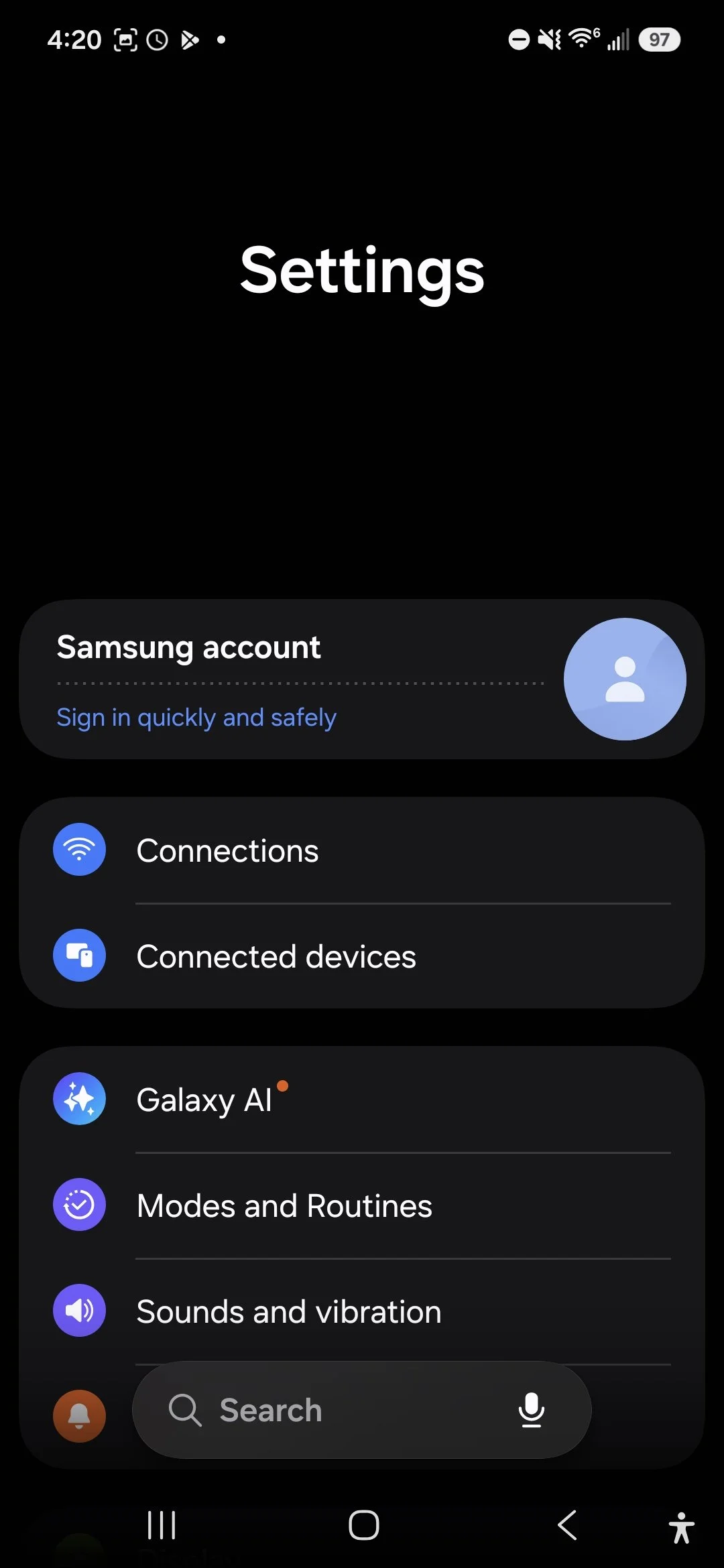
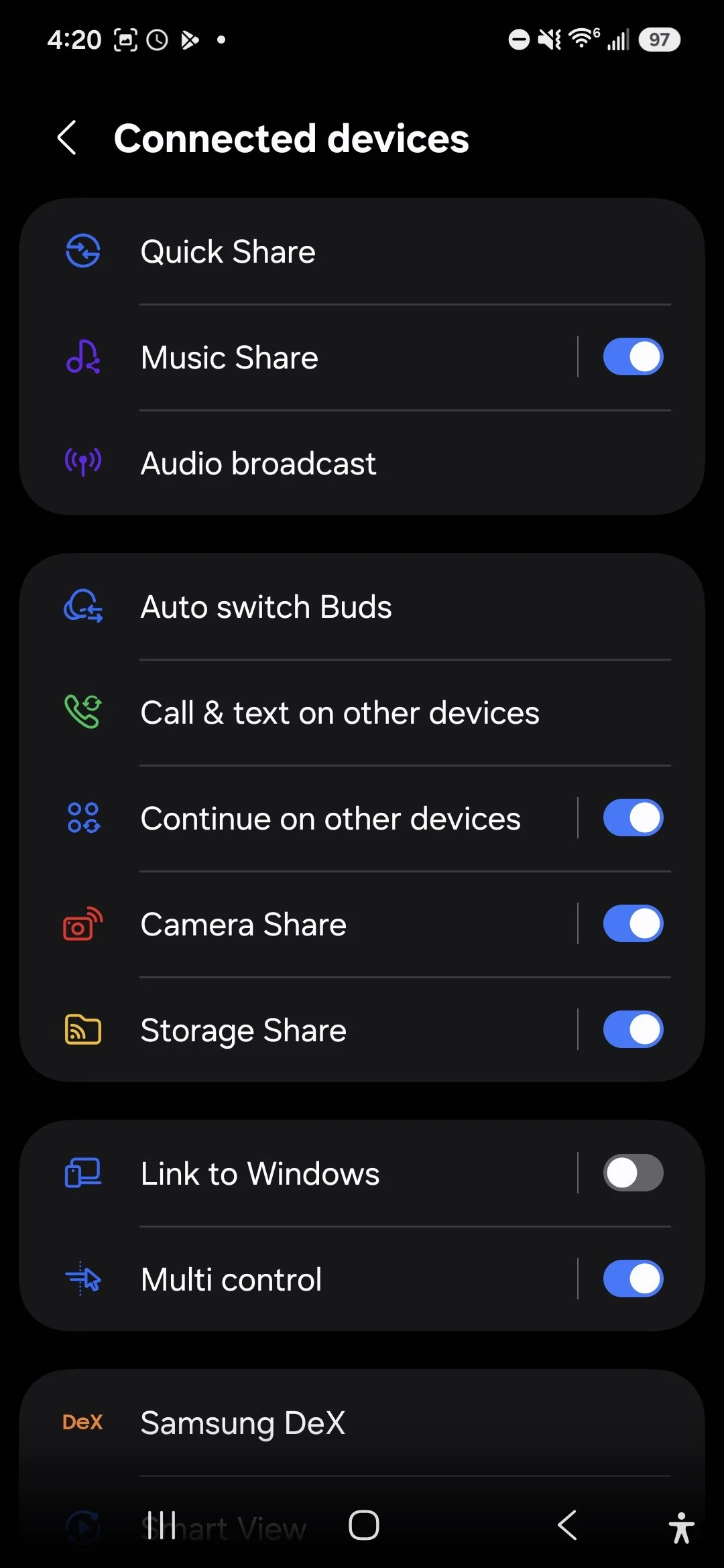
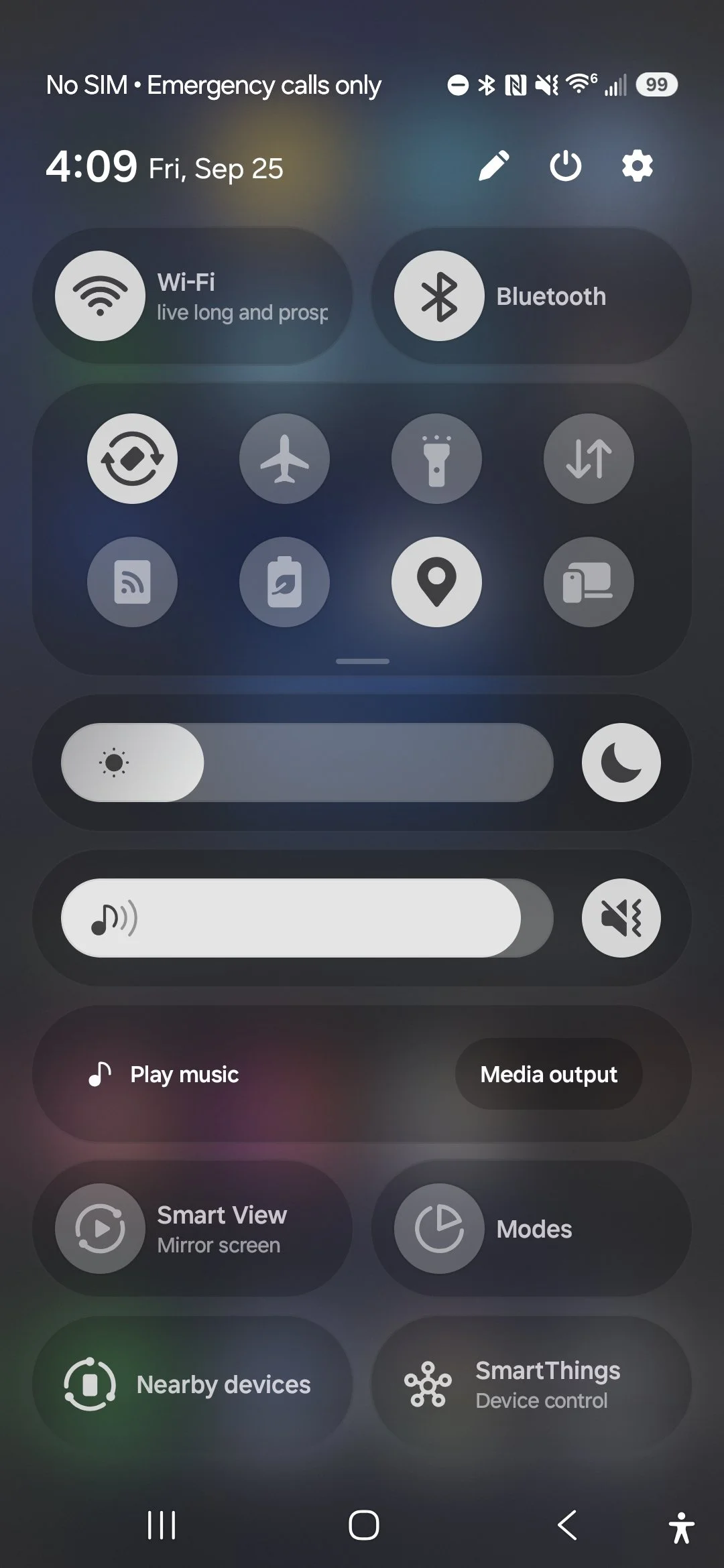
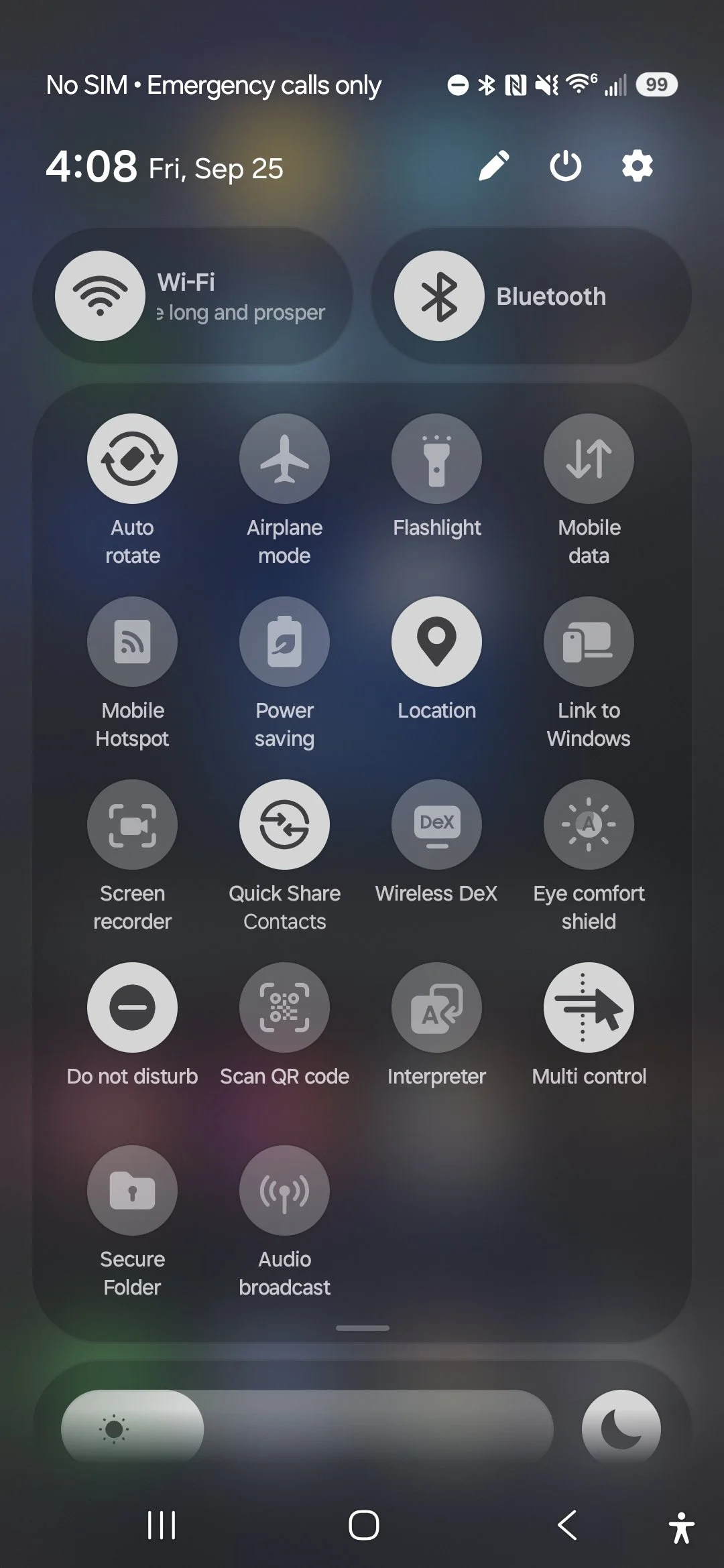
The screenshots below are from a Samsung Galaxy S24 FE phone. The “Auracast Assistant” in this case is the “Audio Broadcast” Listen option. Screen 1 - No device and no streams. Screen 2 - Stream but no device. Screen 3 - Galaxy Buds4 Pro and stream. Screen 4 - Listening to the broadcast stream.
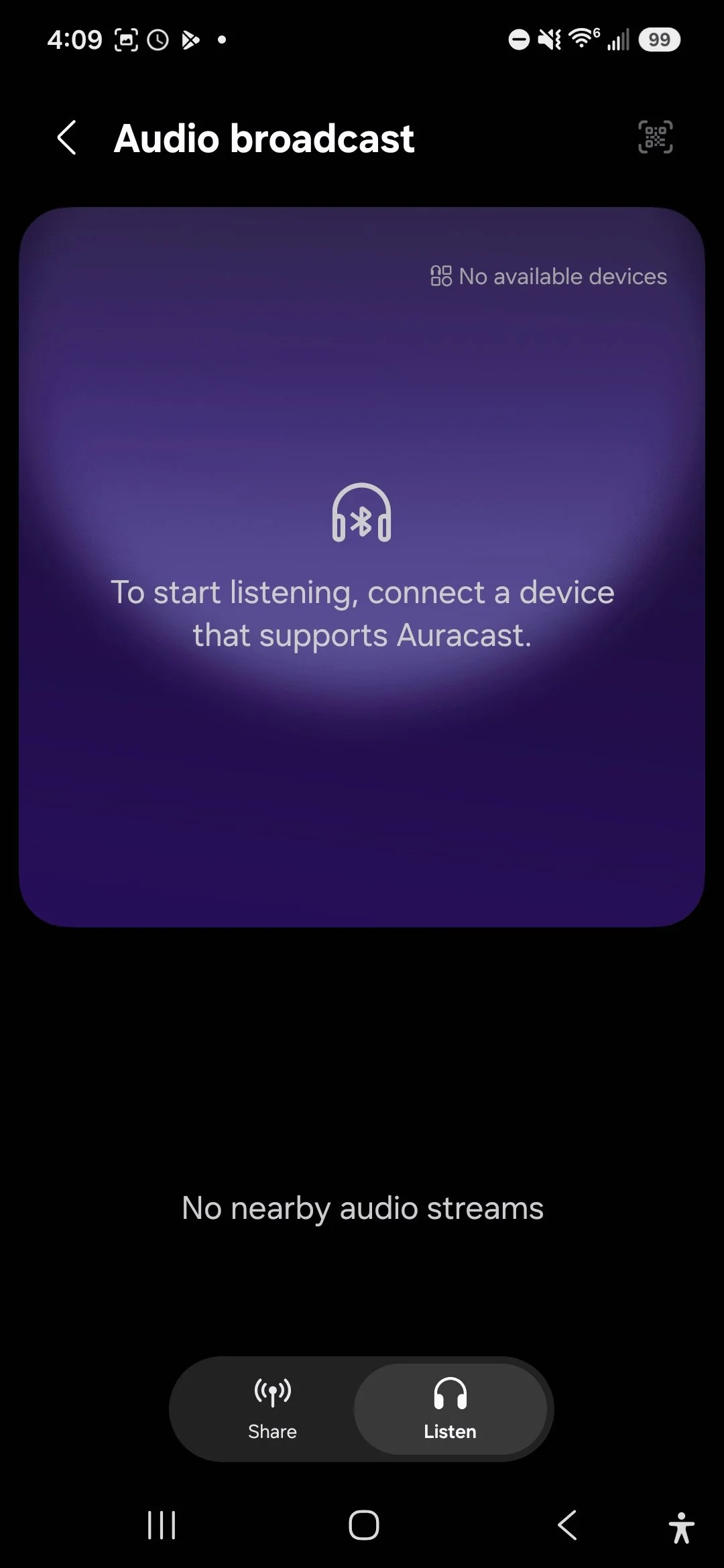
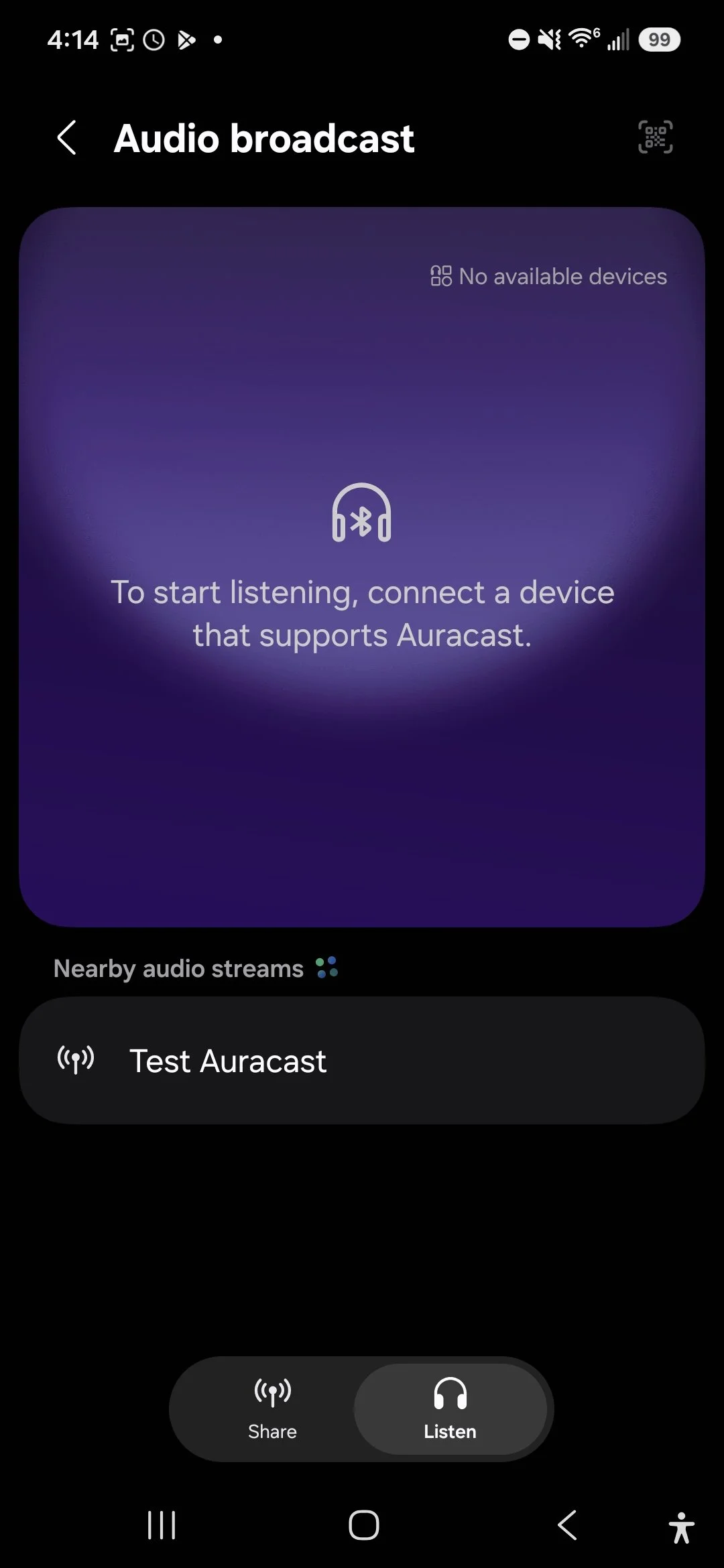
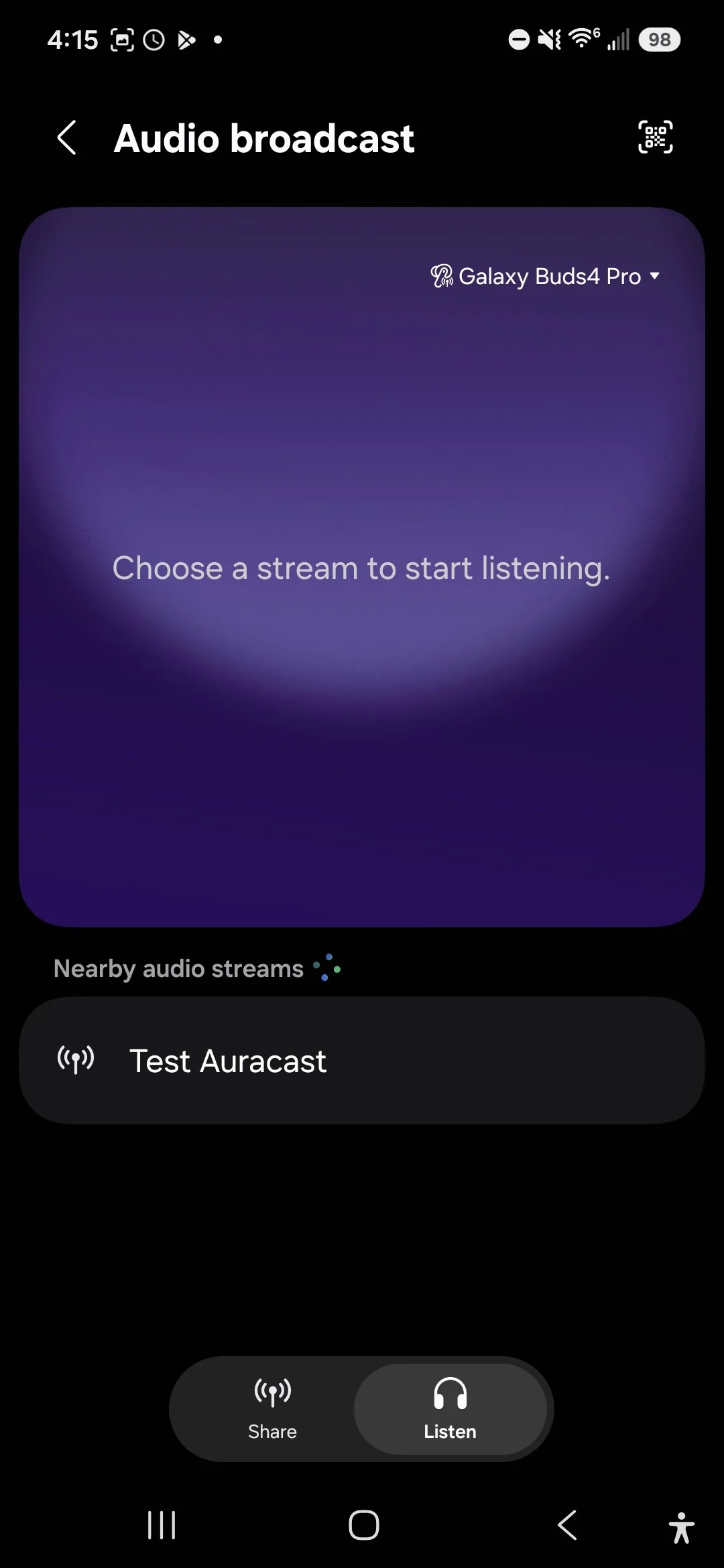
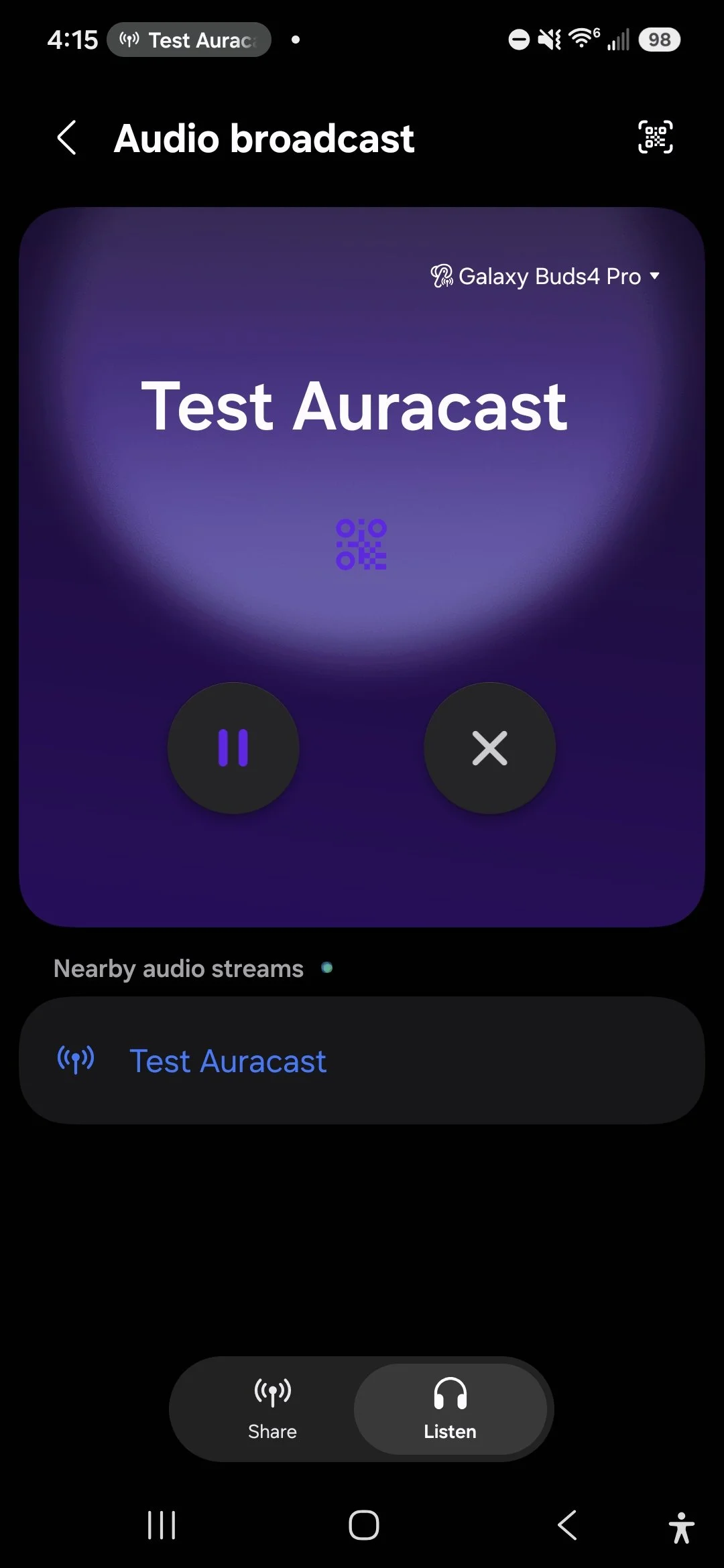
There are two ways to get to the Samsung Audio Broadcast feature.
First: Settings App / Connected devices / Audio Broadcast
Second: Swipe down from top right / Expand icon tray / Audio Broadcast
Where’s Apple / Beats? Great question! Unfortunately they have not yet upgraded firmware and software to support Auracast Audio Broadcasting.Their shipping Bluetooth levels have been capable for a couple of years, but they haven’t released support yet. Reach out to Apple and tell them you want support for Auracast Audio Broadcasting now!
Fear not! Most Auracast Earbuds and Headphones have their own iPhone app available on the App Store that will show you a list of audio broadcasts. Just select a broadcast and you will start listening to the stream.
Connecting With a QR Code
Some Auracast locations may display a QR code.
Scan the QR code with a compatible phone and follow the instructions on the screen. This can make finding the correct broadcast much easier, especially when several broadcasts are available nearby.
QR codes can also provide the information needed to join a protected private broadcast.
What About Auracast Earbuds and Headphones?
Compatible earbuds and headphones can receive broadcasts. This makes Auracast useful for anyone who wants to hear public audio more clearly or privately.
Using Auracast Hearing Aids
Compatible hearing aids can receive Auracast audio directly, but your phone may be used to find and select the broadcast.
Once connected, the sound from a microphone, TV, or other source can be delivered directly to your hearing aids.
This can be especially helpful in churches, meeting rooms, theaters, airports, and other places where distance and background noise make speech difficult to understand.
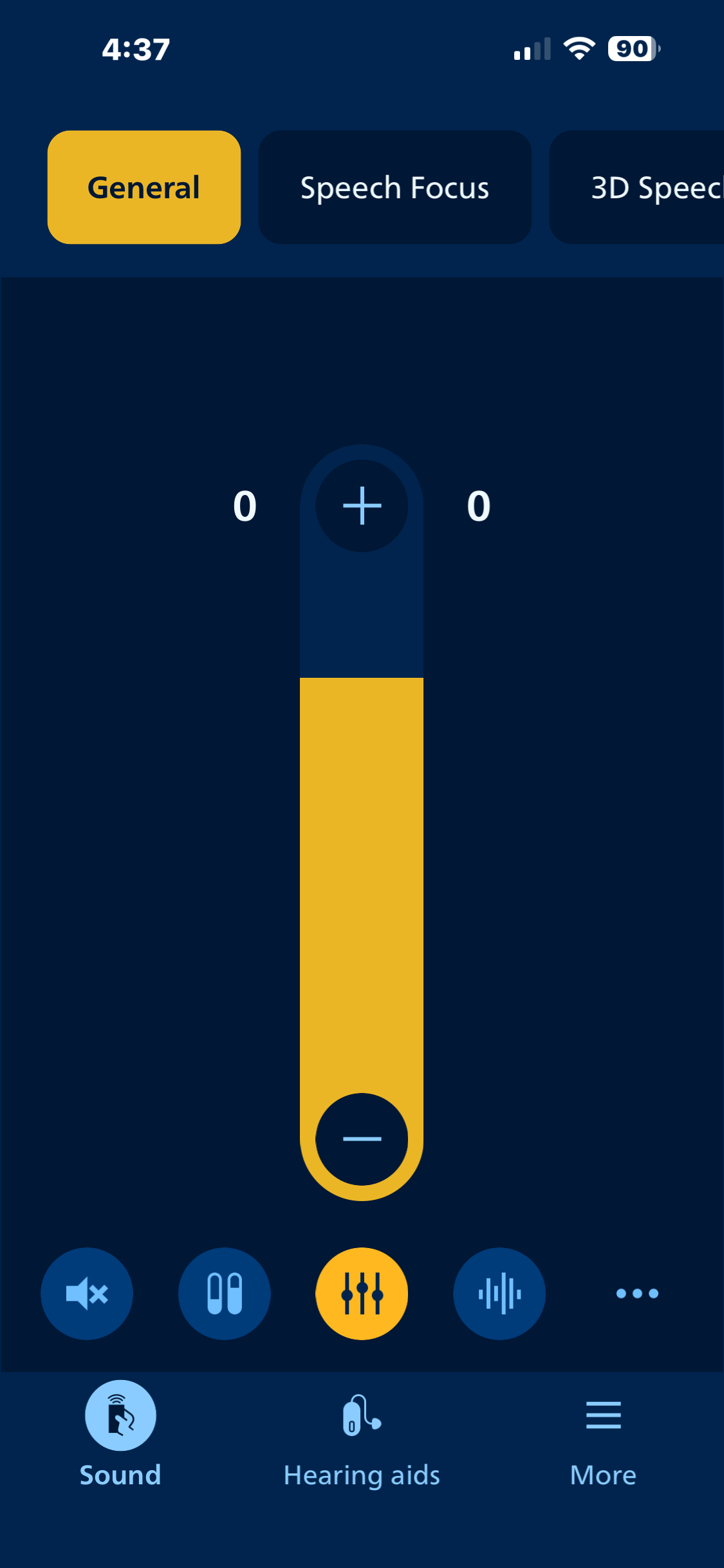
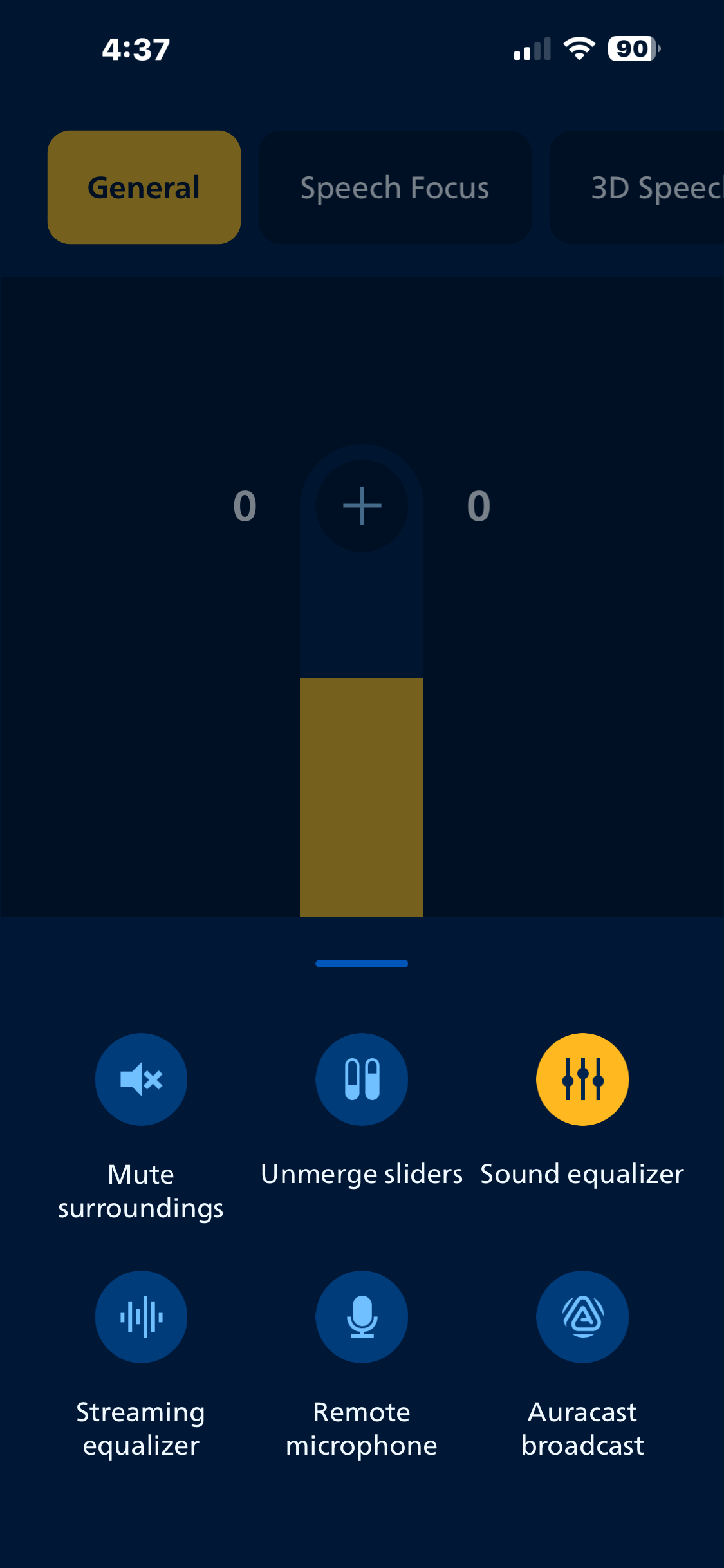
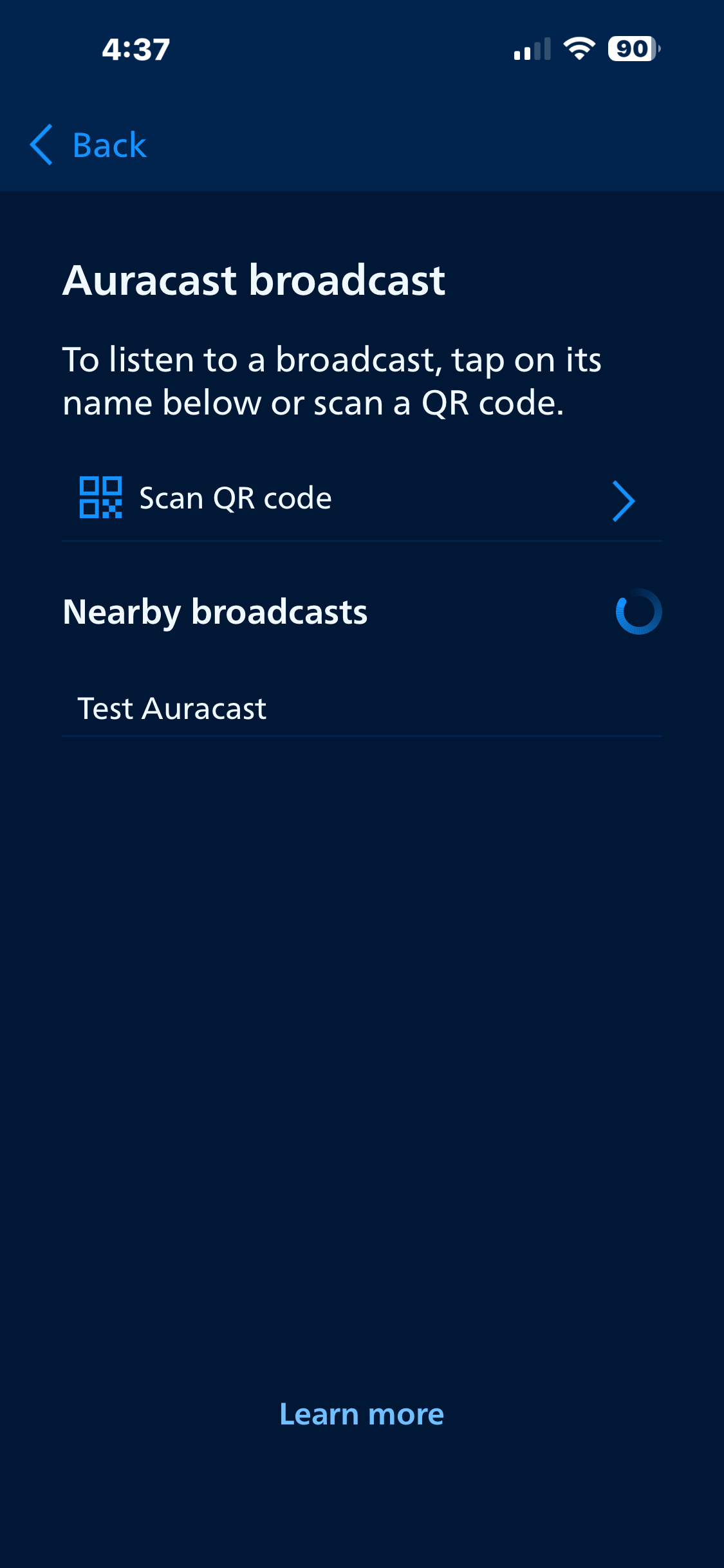
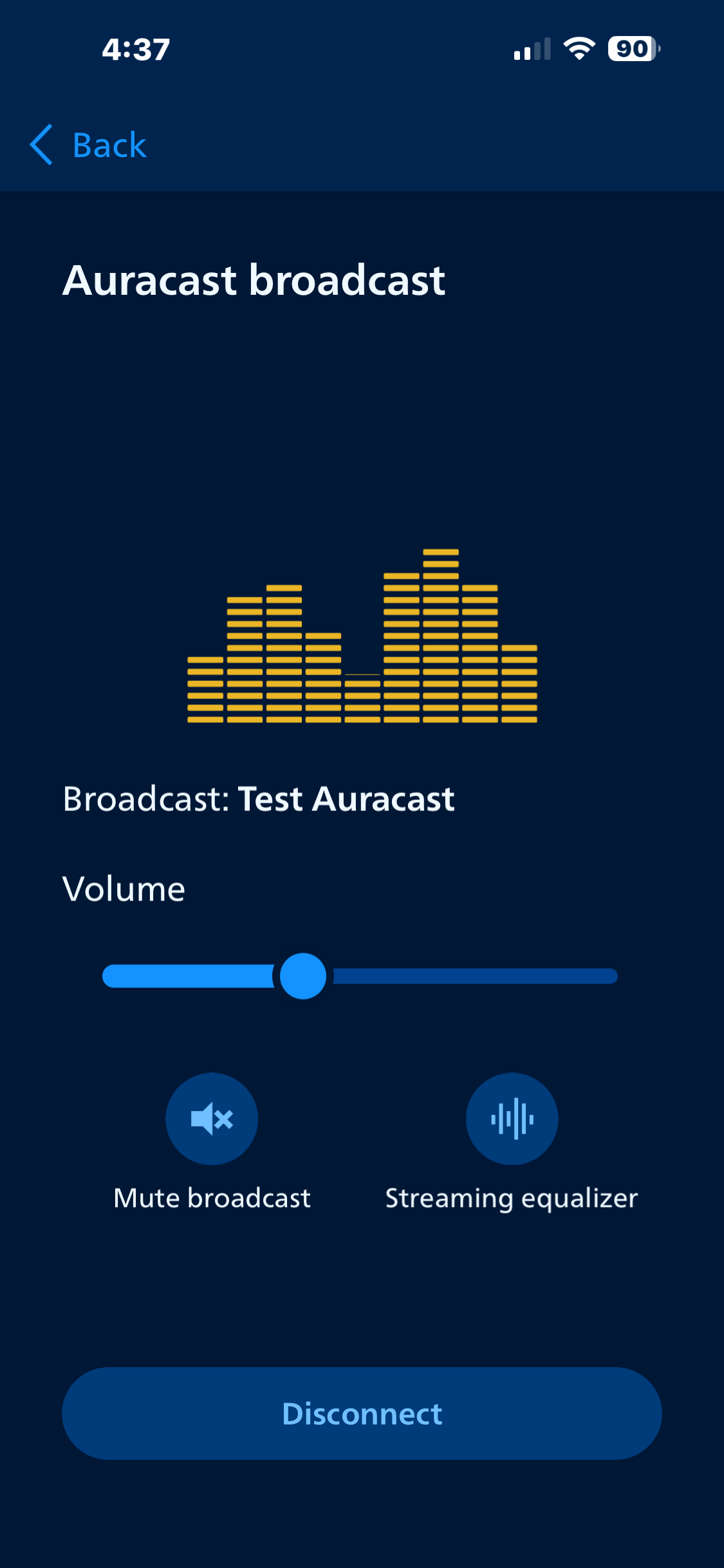
The screenshots below are from a Philips HearLink 2 app for Philips 9050 Hearing Aids. Screen 1 - Home page. Screen 2 - Select … option and Auracast broadcast. Screen 3 - Displaying Nearby broadcasts. Screen 4 - Showing the selected broadcast.
Each device that doesn’t use a phone operating system “Auracast Assistant” will include the capability in it’s phone app.
Do I Need a Phone?
Not always.
Some listening devices may have their own way to find or select broadcasts. Dedicated Auracast receivers can also allow people to listen using traditional wired headphones or earbuds.
In many cases, however, a compatible smartphone provides the easiest way to find and select the broadcast.
Why Can't I Find the Broadcast?
First, make sure your device actually supports Auracast reception.
This is important because:
Bluetooth 5.x does not automatically mean Auracast.
Bluetooth LE Audio does not automatically mean full Auracast support.
A phone, hearing aid, or pair of earbuds may support some newer Bluetooth features without supporting the ability to find and join an Auracast broadcast.
Also check that:
Bluetooth is turned on.
Your hearing aids or earbuds are connected and ready.
You are within range of the transmitter.
The Auracast transmitter is turned on and broadcasting.
Your phone and listening device have current software.
If you're unsure, check the manufacturer's specifications specifically for Auracast or Bluetooth Audio Broadcast support.
No Pairing Required
This is one of the best things about Auracast.
You don't have to ask someone to put the transmitter into pairing mode. The person operating the sound system doesn't need to connect your hearing aids. And adding another listener doesn't interrupt anyone already listening.
Find the broadcast. Select it. Listen.
That's Auracast.